Introduction
If you want to reach visitors from different countries, a multilingual website is no longer optional—it’s a competitive advantage. Whether you run a business website, an online store, or a personal blog, offering content in multiple languages helps you connect with a broader audience and improves the user experience.
A multilingual website also supports international SEO by allowing search engines to index language-specific pages. This can increase your visibility in Google and other search engines while helping users find content in their preferred language.
In this guide, you’ll learn how to create a multilingual WordPress website using BW Multilingual, a WordPress translation plugin designed to make multilingual website management simple. Whether you prefer automatic translation, manual translation, or a combination of both, BW Multilingual gives you the flexibility to build a professional multilingual site without coding.
Why Create a Multilingual Website?
A multilingual website provides several benefits:
- Reach visitors from around the world
- Increase organic traffic through multilingual SEO
- Improve user experience by serving content in visitors’ native languages
- Build trust with international customers
- Increase conversions and sales
- Expand into new markets
- Reduce language barriers
Even if your business operates in one country today, a multilingual website prepares you for future growth.
What You’ll Need
Before you begin, make sure you have:
- A WordPress website
- Administrator access
- BW Multilingual installed
- SSL certificate
- SEO plugin (optional but recommended)
Step 1: Install BW Multilingual
Go to
Plugins → Add New
Upload the BW Multilingual plugin.
Activate the plugin.
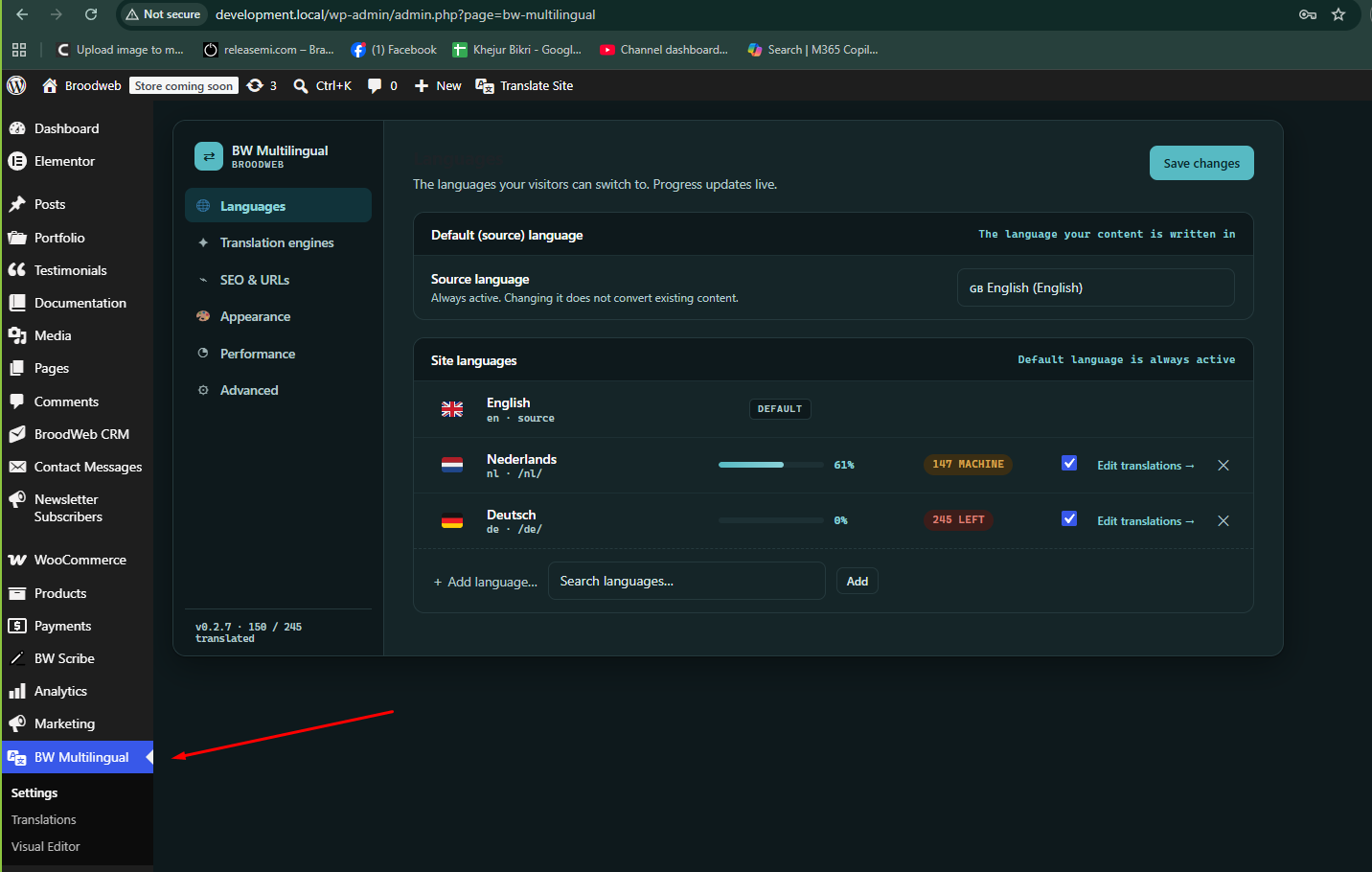
After activation you’ll see a new menu:
BW Multilingual
From there you can configure all translation settings.
Step 2: Choose Your Default Language
Open
BW Multilingual → Settings
Select your website’s primary language.
Example:
Default Language
English
This becomes your original content.
Step 3: Add Additional Languages
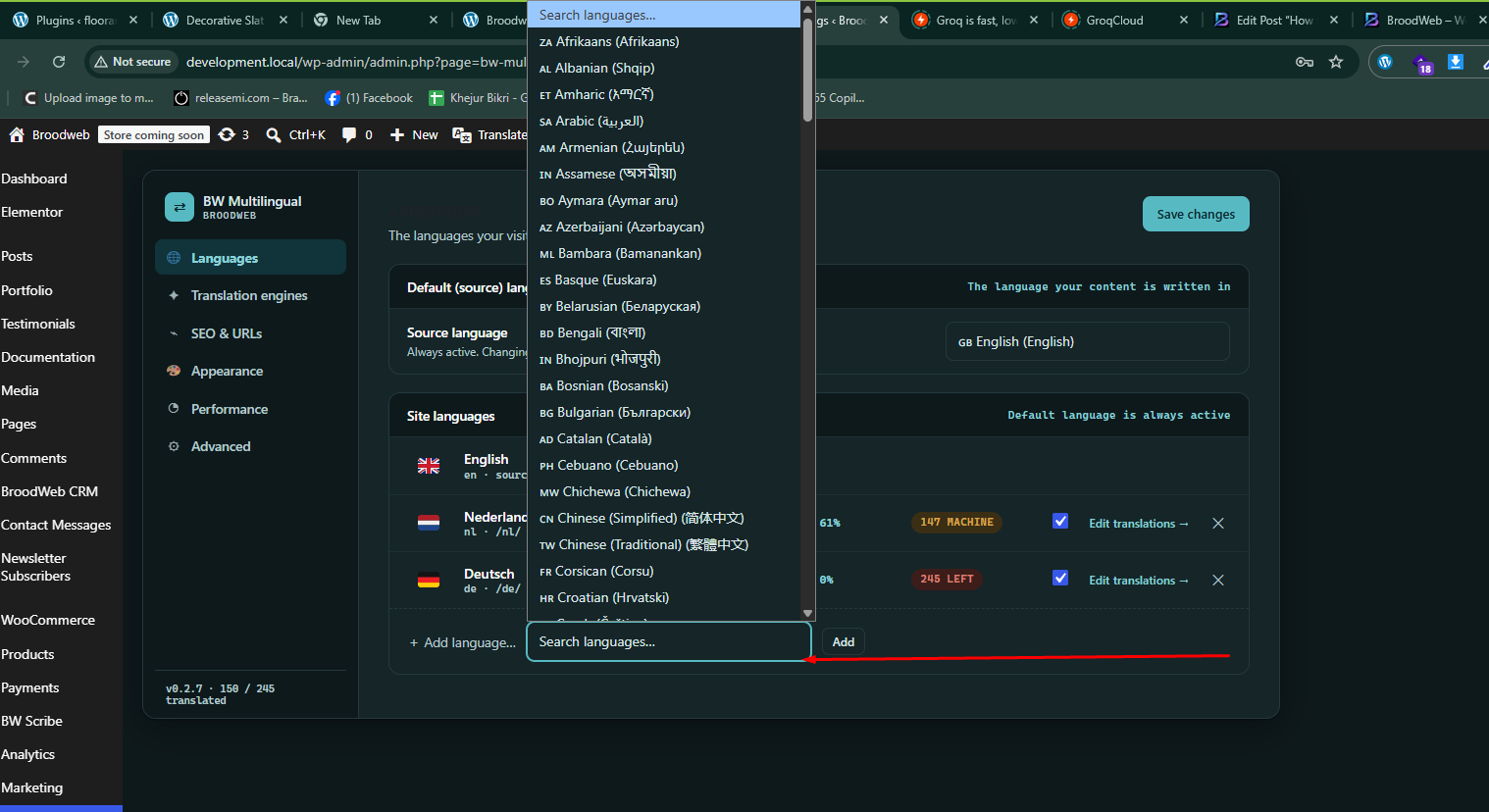
Click
Add Language
Choose the languages you want.
Example:
- Spanish
- French
- German
- Dutch
- Arabic
- Japanese
You can add as many languages as your website requires.
Step 4: Enable Automatic Translation
One of the biggest advantages of BW Multilingual is its automatic translation feature.
Simply connect your preferred translation service.
Then:
Enable Automatic Translation
Now your website content can be translated instantly.
This saves hundreds of hours compared to translating every page manually.
Step 5: Edit Translations Manually
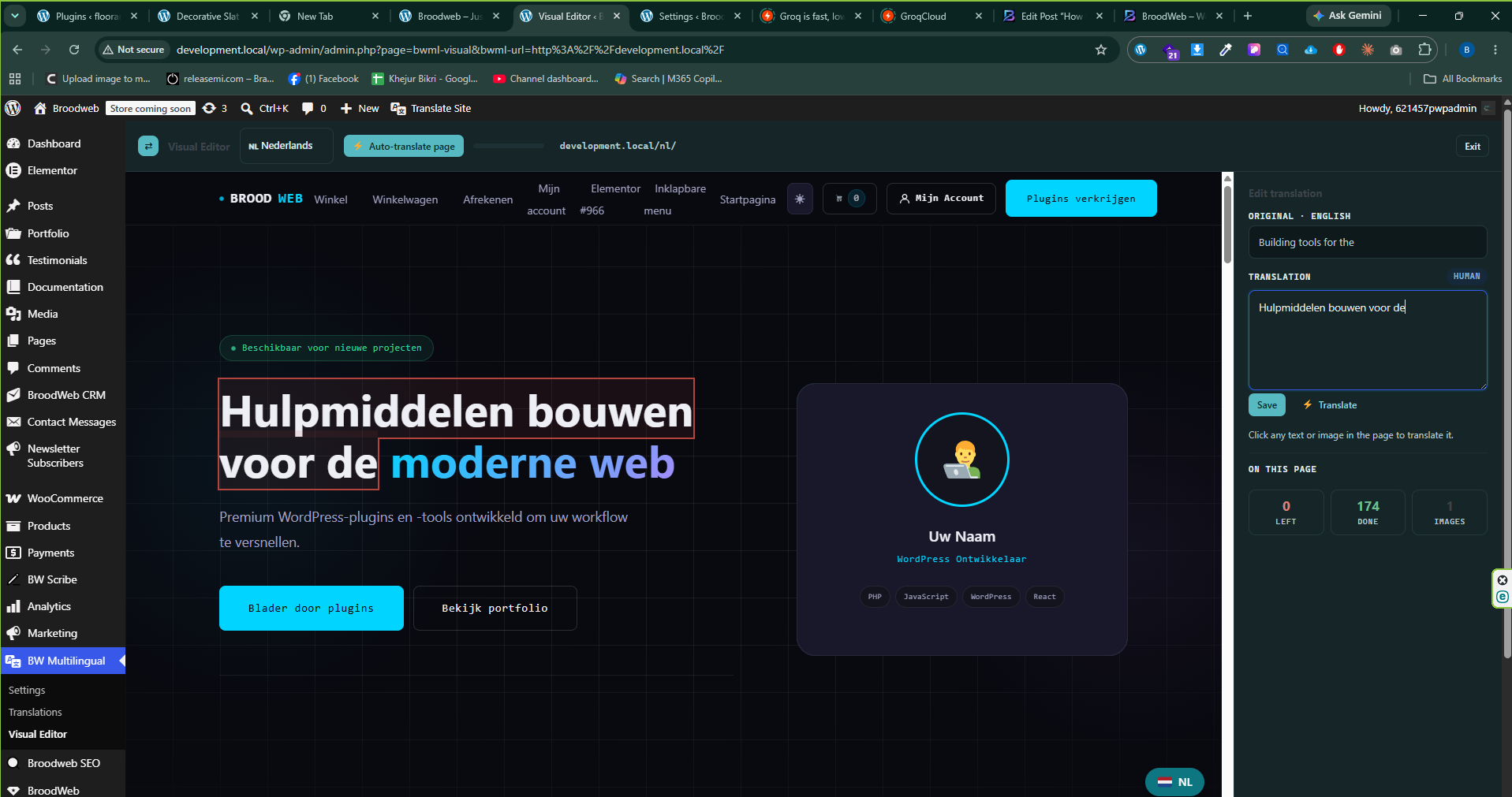
Automatic translation provides a great starting point, but some pages—such as sales pages, product descriptions, or landing pages—benefit from manual refinement.
With BW Multilingual, you can edit any translated content directly from the translation editor while keeping the original layout intact.
This gives you the best balance between speed and quality.
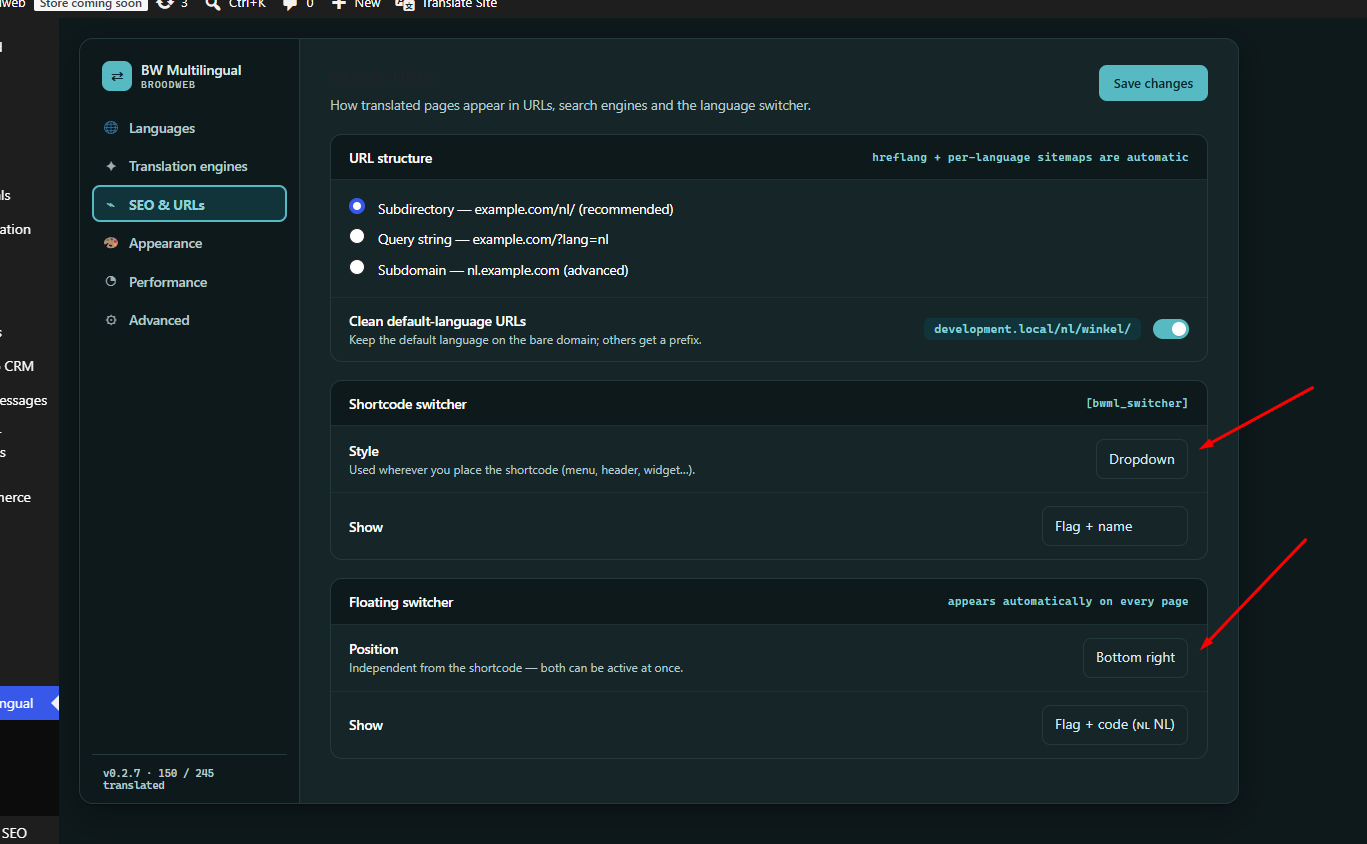
Step 6: Add the Language Switcher
A language switcher allows visitors to choose their preferred language.
BW Multilingual offers multiple display options, including:
- Header
- Navigation Menu
- Floating Button
- Footer
- Shortcode
- Widget
You can also customize:
- Flags
- Language names
- Icons
- Dropdown style
- Position
- Colors
Step 7: Translate WooCommerce
If you run an online store, BW Multilingual helps translate:
- Products
- Categories
- Attributes
- Variations
- Cart
- Checkout
- Emails
This creates a seamless shopping experience for international customers.
Step 8: Translate Elementor Pages
BW Multilingual works smoothly with Elementor.
You can translate:
- Headings
- Buttons
- Images
- Forms
- Popups
- Templates
- Dynamic content
No redesign is required.
Improve Your Multilingual SEO
Creating multiple language versions is only part of the process. To maximize your search visibility, follow these best practices:
- Use language-specific URLs.
- Add proper hreflang tags.
- Translate page titles and meta descriptions.
- Optimize translated content for local keywords.
- Create localized internal links.
- Generate multilingual XML sitemaps.
- Ensure each language version is crawlable.
BW Multilingual is built with these SEO considerations in mind, making it easier to create search-engine-friendly multilingual websites.
Why Choose BW Multilingual?
BW Multilingual combines ease of use with powerful translation features.
Some of its key benefits include:
- Automatic and manual translation in one plugin.
- User-friendly translation editor.
- SEO-friendly language management.
- Compatible with Elementor and WooCommerce.
- Fast, lightweight performance.
- Unlimited languages.
- Flexible language switcher options.
- Translation management dashboard.
- Clean and intuitive interface.
Whether you’re building a personal blog or a global eCommerce store, BW Multilingual helps simplify multilingual website management.
| Feature | BW Multilingual Everything Free |
TranslatePress | WPML |
|---|---|---|---|
| Automatic Translation | ✓ | Paid | Paid |
| Manual Translation | ✓ | ✓ | ✓ |
| Unlimited Languages | ✓ | Paid | ✓ |
| Visual Translation Editor | ✓ | ✓ | ✓ |
| SEO Friendly URLs | ✓ | Paid | ✓ |
| Language Switcher | ✓ | ✓ | ✓ |
| WooCommerce Support | ✓ | Paid | Paid |
| Elementor Compatible | ✓ | ✓ | ✓ |
| Gutenberg Compatible | ✓ | ✓ | ✓ |
| String Translation | ✓ | Paid | ✓ |
| RTL Language Support | ✓ | ✓ | ✓ |
| Translation Management | ✓ | Paid | ✓ |
| Regular Updates | ✓ | ✓ | ✓ |
| Premium Features Required | No | Yes | Yes |
| Price | Free | Free + Pro | Premium |
Frequently Asked Questions
Is BW Multilingual beginner-friendly?
Yes. The setup process is designed for users of all experience levels, with no coding required.
Can I combine automatic and manual translations?
Yes. You can generate automatic translations and then refine them manually wherever needed.
Does BW Multilingual support WooCommerce?
Yes. Products, categories, checkout pages, and other WooCommerce content can be translated.
Is BW Multilingual compatible with Elementor?
Yes. It works with Elementor pages and templates, allowing you to translate your designs without rebuilding them.
Does BW Multilingual help with SEO?
Yes. It supports multilingual SEO best practices, including language-specific URLs, translated metadata, and proper language management.
Conclusion
Creating a multilingual WordPress website is one of the most effective ways to expand your audience, improve user experience, and grow your search visibility.
With BW Multilingual, you can translate your website using automatic or manual methods, manage multiple languages from a single dashboard, and maintain an SEO-friendly multilingual structure—all without needing to write code.
Whether you’re running a blog, a business website, or an online store, BW Multilingual provides the tools you need to build a professional multilingual WordPress site with confidence.


Leave a Reply