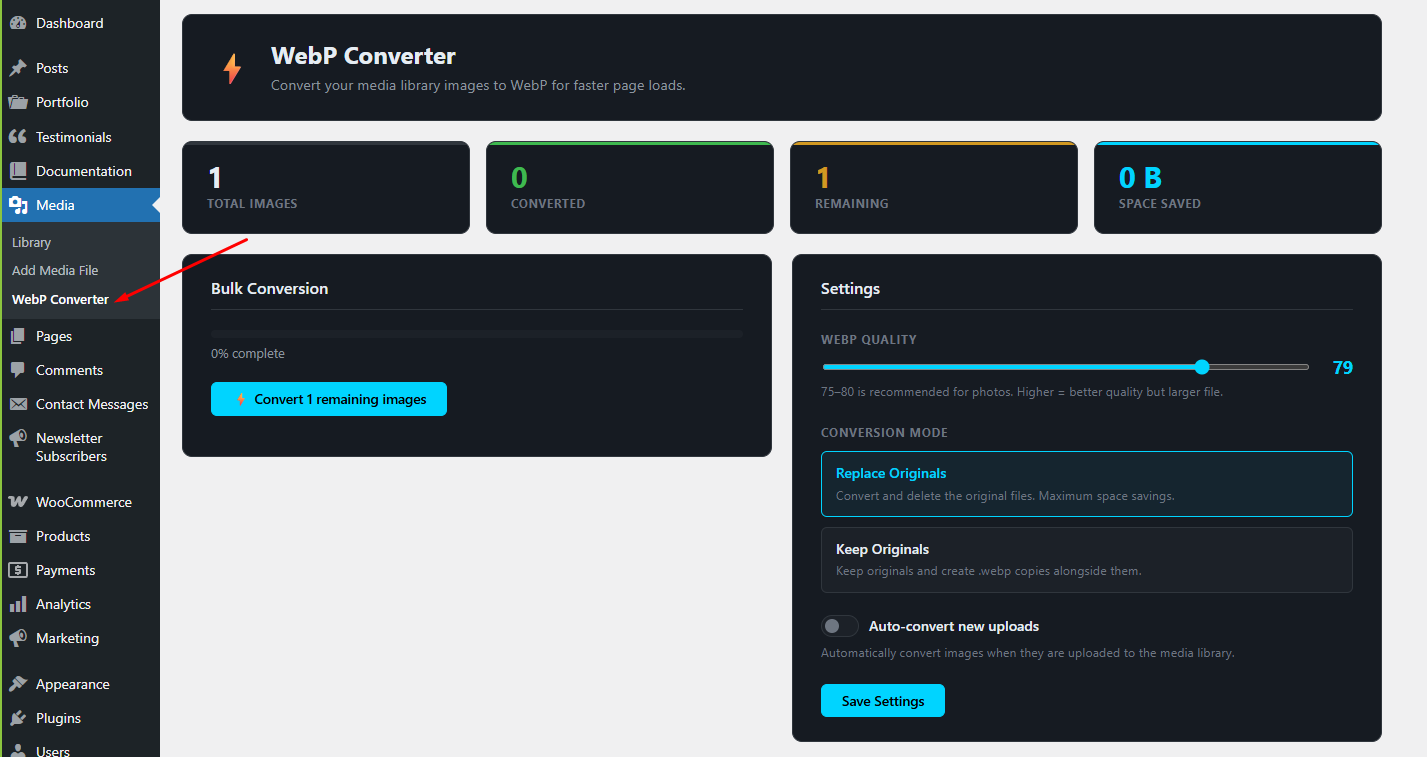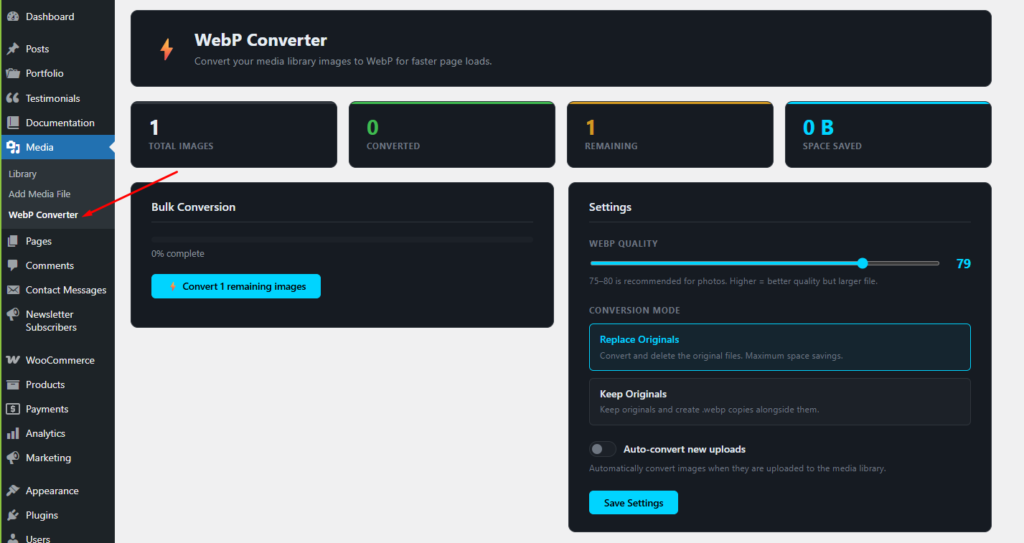
What BroodWeb WebP Converter Does
Rather than adding a complex CDN layer or requiring you to re-upload images, this plugin works directly with your existing media library. Everything happens inside WordPress — no external service, no API key, no subscription.
Bulk Convert Your Entire Library
Hit one button and the plugin works through every JPEG, PNG, and GIF in your media library one by one. A real-time progress bar and conversion log show you exactly what’s happening — which image is being processed, how much was saved, and a running total of space recovered.
On my own site with 21 images, the bulk conversion saved several megabytes in under 30 seconds.
Auto-Convert New Uploads
Enable the auto-convert toggle and every image you upload going forward gets converted to WebP automatically — including all thumbnail sizes. You don’t have to think about it again.
One important technical note: the plugin converts after WordPress has finished generating all thumbnail sizes, not before. This was a deliberate design decision. Some plugins get this wrong and convert the original before thumbnails are created, resulting in broken previews. BroodWeb WebP Converter waits until every size is ready, then converts the full set.
Two Conversion Modes
Replace Originals — The original JPEG or PNG is replaced by the WebP file on disk. WordPress’s attachment metadata (file path, MIME type, and cached file size) is updated to point to the new file. Maximum space savings, minimum disk usage. Use this if you have a backup and don’t need the originals.
Keep Originals — A .webp copy is created alongside the original file without touching WordPress records. Useful if you want to keep originals as a safety net or serve different formats based on browser support via server rules.
Per-Image Control
Every image in your media library is listed in the plugin’s table with its current status (Original or WebP), the file type, and the percentage of space saved after conversion. You can convert individual images, re-convert them at a different quality level, and filter the table to show only unconverted images.