If your WordPress site is still serving JPEG and PNG images, you’re leaving serious performance on the table. Modern image formats like WebP can cut your image sizes by 70–90% without any visible quality loss — and that directly translates to faster load times, better Core Web Vitals scores, and higher search rankings.
Today I’m releasing BroodWeb WebP Converter — a plugin I built for my own site that lets you convert your entire media library to WebP right from the WordPress dashboard. No external service. No API key. No subscription.
Why WebP Matters in 2026
Google made page speed a direct ranking factor, and images are almost always the single largest contributor to page weight. Switching to WebP is the highest-impact, lowest-effort performance optimization most WordPress sites can make right now.
Here’s what the numbers look like in real life:
| Format | Typical File Size | Browser Support |
|---|---|---|
| JPEG | 300 KB | Universal |
| PNG | 600 KB | Universal |
| WebP | 40–90 KB | All modern browsers (97%+) |
That’s not a typo. A 1 MB portrait photograph I tested during development came out at 40 KB after WebP conversion at quality 75 — a 96% reduction. The image looked completely identical on screen.
💡 All modern browsers — Chrome, Firefox, Safari, Edge — have supported WebP since 2020. There is no longer any reason to serve JPEG or PNG as your primary image format.
Introducing BroodWeb WebP Converter
BroodWeb WebP Converter is a lightweight WordPress plugin that converts your existing JPEG, PNG, and GIF images to WebP directly from the WordPress admin. No re-uploading required. No external service. Everything runs on your own server.
Here’s everything it can do:
- ✅ Bulk convert your entire media library with one click
- ✅ Auto-convert new uploads automatically after thumbnails are generated
- ✅ Per-image conversion with a single button click per image
- ✅ Replace or Keep originals — you choose the mode
- ✅ Configurable quality — slider from 1 to 100 (default: 80)
- ✅ Live progress bar and per-image conversion log during bulk runs
- ✅ Space saved counter that updates in real time
- ✅ Converts all thumbnail sizes, not just the full-size image
- ✅ Clean uninstall — removes all plugin data from your database
- ✅ Translation-ready with full i18n support
Key Features in Detail
1. Bulk Conversion with Real-Time Feedback
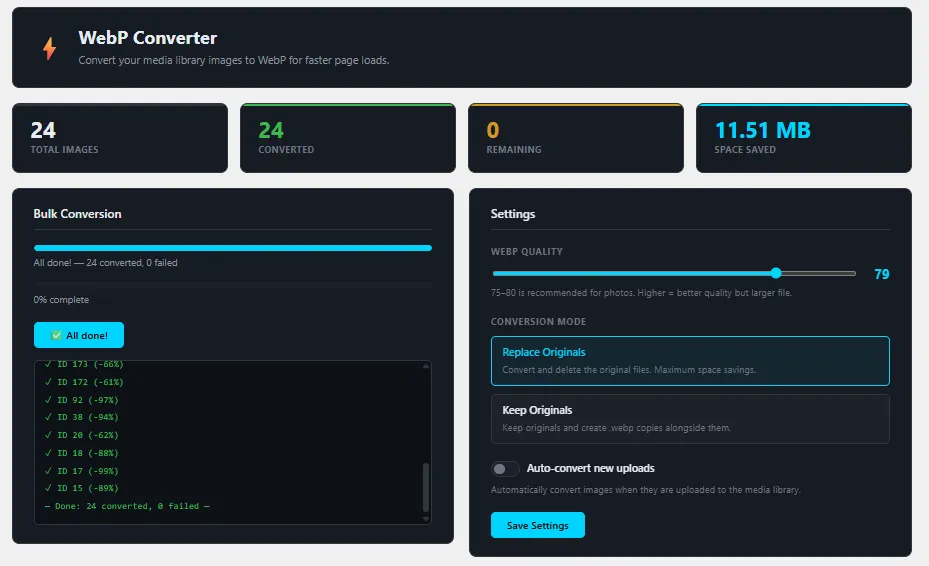
The bulk conversion screen is the centrepiece of the plugin. Hit Convert remaining images and the plugin processes every unconverted JPEG, PNG, and GIF in your media library one by one — no page reloads, no timeouts.
While it runs you see:
- A progress bar showing percentage complete
- A live log with each image ID, result, and percentage saved
- The running total of space recovered updating in real time
- A Stop button so you can pause at any point
On my own site with 21 images, the bulk run completed in under 30 seconds and saved several megabytes of disk space.
2. Auto-Convert on Upload
Enable the auto-convert toggle and every image you upload going forward gets converted automatically — including all thumbnail sizes WordPress generates. You set it once and never think about it again.
Important technical detail: The plugin converts after WordPress has finished generating all thumbnail sizes, not before. Some other plugins get this wrong — they convert and delete the original before thumbnails are created, which results in broken preview icons in the media library. BroodWeb WebP Converter waits until every registered image size has been written to disk, then converts the complete set.
3. Two Conversion Modes
Replace Originals (recommended)
The original JPEG/PNG/GIF is overwritten by the WebP version. WordPress’s attachment metadata — file path, MIME type, and the cached file size displayed in the media library — is all updated to reflect the new file. Maximum space savings. Use this if you have a recent backup.
Keep Originals
A .webp copy is created alongside the original (e.g. photo.jpg → photo.webp) without modifying any WordPress records. Useful if you want to keep originals as a safety net or if you’re serving different formats based on browser support via server-side rules.
4. Smart Dual-Engine Conversion
Under the hood the plugin uses two conversion engines in parallel:
- PHP’s native GD
imagewebp()function - WordPress’s
WP_Image_Editorabstraction layer (GD or Imagick)
Both run on every image and produce separate output files. The plugin then compares file sizes and keeps the smaller result. This protects against either library producing a suboptimal output, which can happen in edge cases — particularly with Imagick’s default quality mapping for WebP.
5. Correct Metadata — No Stale File Sizes
One common problem with WebP converter plugins is that the media library still shows the old file size (e.g. “1 MB”) even after the image has been converted to a much smaller WebP. This happens because WordPress caches file size in its attachment metadata.
BroodWeb WebP Converter explicitly updates the filesize key in attachment metadata after every conversion, flushes the WordPress object cache, and cleans the post cache. The size shown in your media library reflects the actual file on disk immediately.
The Quality Setting — A Practical Guide
| Quality Range | Best For | Notes |
|---|---|---|
| 60–70 | Thumbnails, icons, UI images | Aggressive compression, smallest files |
| 75–80 ⭐ | Most sites — photos, blog images | Sweet spot. Visually indistinguishable from original |
| 82–85 | Portfolio, product photography | High detail preservation, slightly larger files |
| 90+ | Near-lossless professional use | File sizes approach the original — rarely needed |
I run my own site at quality 75. Nobody has ever noticed a difference, and the savings are dramatic.
Server Requirements
Your server needs one of the following to use this plugin:
- PHP GD extension with WebP support — the
imagewebp()function must be available - PHP Imagick extension compiled with WebP encoding support
The plugin checks this automatically when you open the converter page and shows a clear warning if support is missing. If you’re on a reputable managed WordPress host, you almost certainly already meet this requirement — it’s available by default on WP Engine, Kinsta, Cloudways, SiteGround, Hostinger, and most other quality hosts.
If you’re unsure, ask your host: “Is the PHP imagewebp() function available in my environment?”
How to Install
- Download the plugin and upload the
bw-webp-converterfolder to/wp-content/plugins/, or install via Plugins → Add New → Upload Plugin - Activate it from the Plugins screen
- Go to Media → WebP Converter in your WordPress admin sidebar
- Adjust the quality slider and conversion mode in the Settings panel if needed, then click Save Settings
- Click Convert remaining images to process your entire media library
💾 Before running bulk conversion in Replace mode, make sure you have a recent backup of your site. Replacing original files is permanent and cannot be undone from within the plugin.
Real-World Results
Here are the savings from my own media library after running the bulk conversion at quality 75:
- Logo PNG files: −96% to −98%
- Screenshot PNGs: −60% to −80%
- Portrait JPEG photos: −89% to −99%
- Overall: 21 images converted, several MB saved in under 30 seconds
These aren’t cherry-picked numbers — that’s what the live conversion log showed on my actual site.
What’s Coming Next
This is version 1.0.0. Here’s what I’m planning to add in future releases:
- 🔜 AVIF support — even smaller than WebP, with rapidly growing browser support
- 🔜 Date-range conversion — convert only images uploaded within a specific period
- 🔜 WP-CLI command — for developers who prefer the terminal
- 🔜 Multisite support — per-site conversion across a WordPress network
If any of these are important to you, get in touch or leave a comment below. Feature requests from real users drive the roadmap.
Download BroodWeb WebP Converter — Free
The plugin is free and open source under the GPL-2.0 license. No upsell. No freemium gating. No nag screens.
⚡ Download BroodWeb WebP Converter
Built by BroodWeb — premium WordPress plugins and tools crafted by a developer who uses them daily.


Leave a Reply